Csvio plans, limits and billing
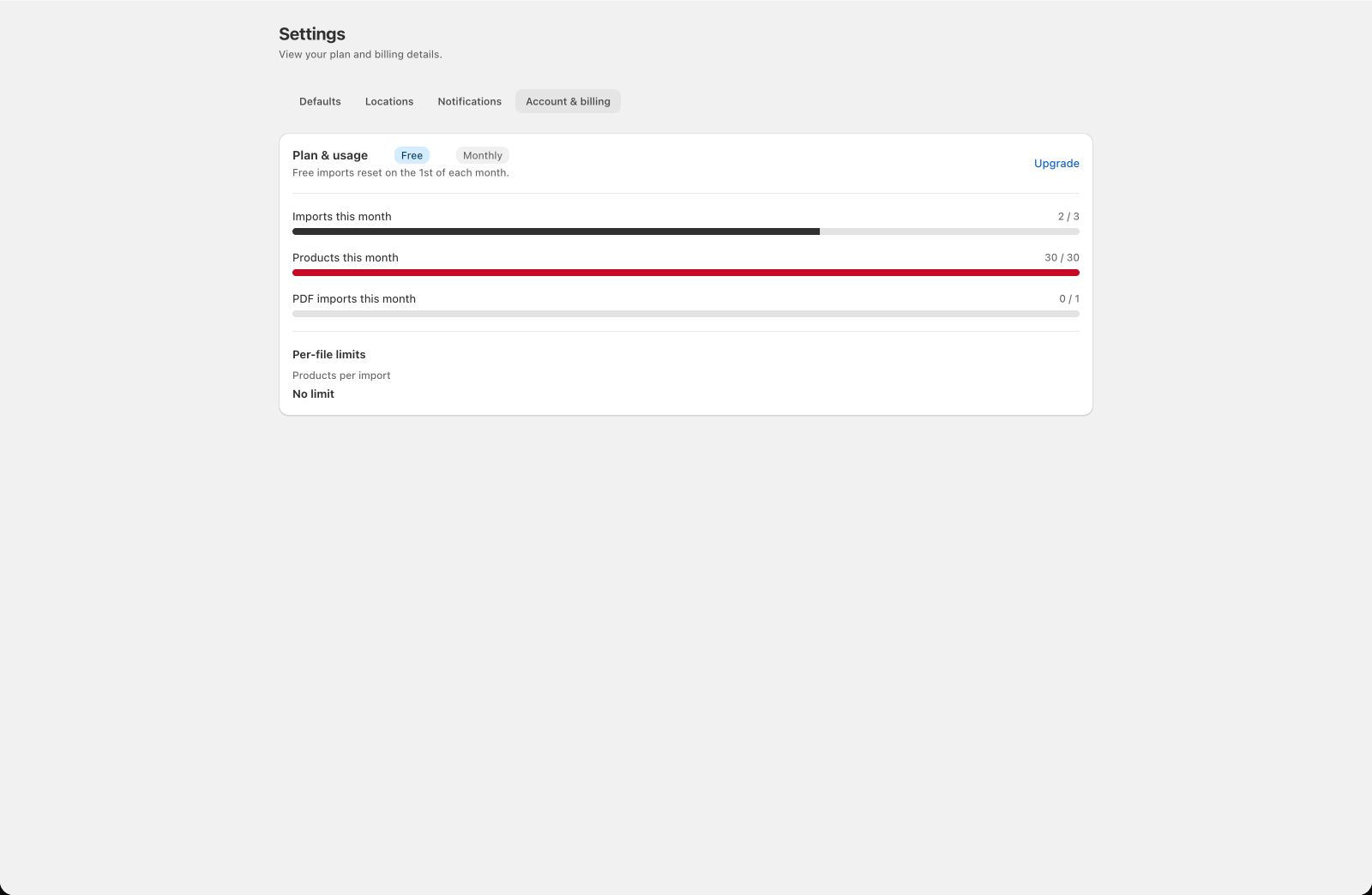
The Settings > Account & billing tab shows your current plan under Plan & usage, how many of your products for the month you've used, and the limits that apply to each import.
What plans does Csvio have?
Csvio has four plans:
| Free | Starter | Pro | Scale | |
|---|---|---|---|---|
| Price | $0 | $19/month | $39/month | $79/month |
| Imports per month | 3 | Unlimited | Unlimited | Unlimited |
| Products per month | 30 | 25,000 | Unlimited | Unlimited |
| Products per import | No limit | 5,000 | 50,000 | 100,000 |
| PDF imports per month | 1 | 3 | 30 | 150 |
| Bulk edit | Included | Included | Included | Included |
| Bulk delete | — | Included | Included | Included |
| Resync | — | — | Included | Included |
| Scheduled imports | — | — | Up to 10 | Up to 50 |
| Dry-run preview | Included | Included | Included | Included |
| Support | Included | Included | Included | Included |
Starter is for bringing a supplier catalogue in. Pro adds the two things that keep it up to date on its own — Resync and scheduled imports. Scale is Pro for a bigger catalogue and more schedules.
How do I see how much I've used?
The Account & billing tab shows your usage so far this month:
Free:
- Imports this month (e.g. 2 / 3) with a progress bar
- Products this month (e.g. 12 / 30) with a progress bar. Every product you import or bulk edit counts here, whichever file it came from.
- PDF imports this month, once you've used the one Free includes
Starter:
- Products this month (e.g. 4,120 / 25,000) with a progress bar, counted the same way
- PDF imports this month
Pro and Scale:
- PDF imports this month
Pro and Scale have no monthly cap on imports or products, so the PDF counter is the only usage meter you'll normally see. Every progress bar turns yellow as you near the limit and red once you reach it, and they all reset on the 1st of each month.
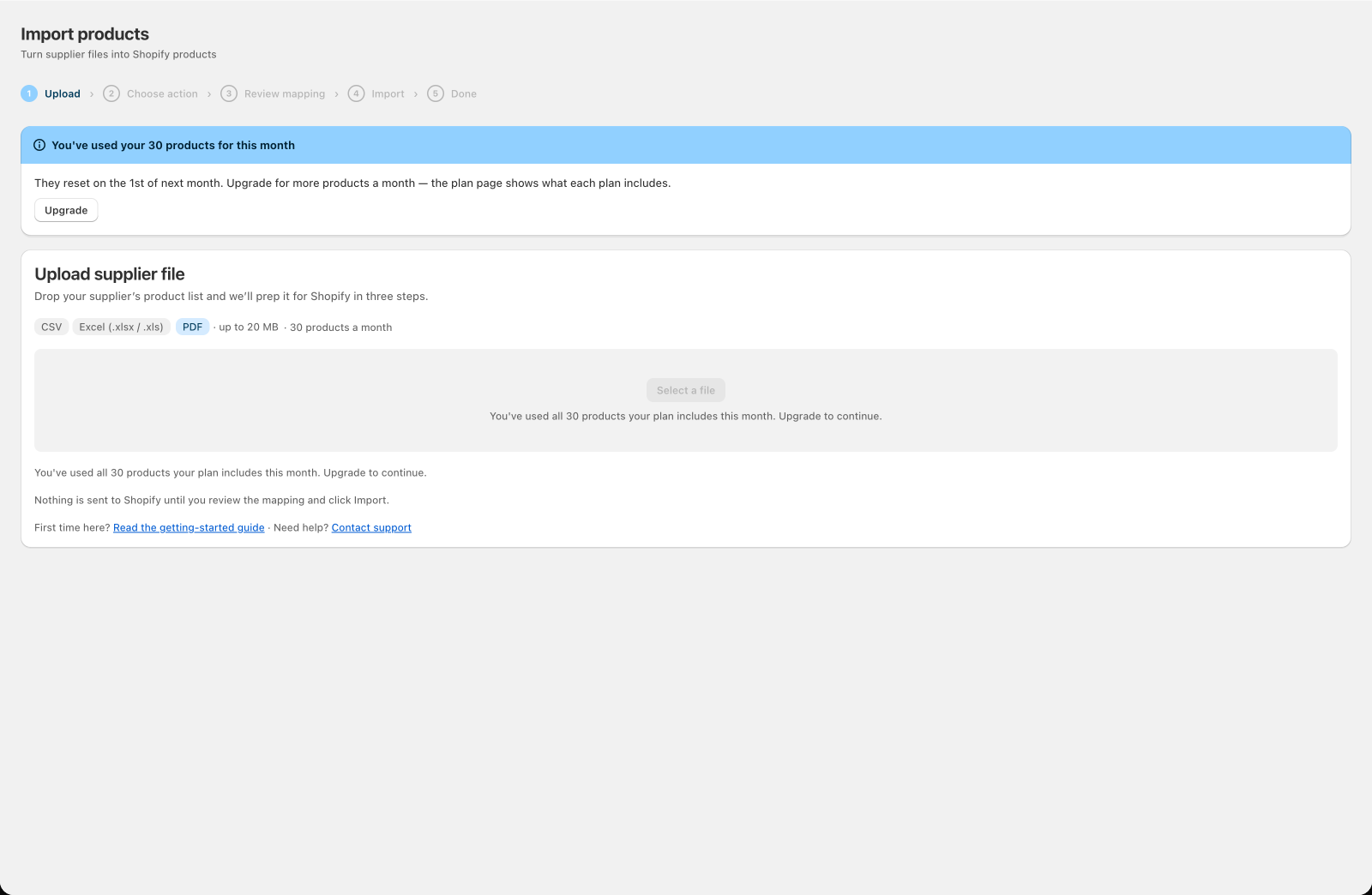
Once you've used all of your products for the month, the upload screen says so and offers Upgrade. Your products come back on the 1st.
What limits apply to each import?
Below the usage section you'll see the limits that apply to each individual import:
- Products per import — how many distinct products one file can bring in. A file with more than this isn't imported: the review screen asks you to split it into smaller files, or upgrade to a plan that imports it in one go. Every product in the file counts, including ones already in your store. On Free this row says No limit, because your products for the month are what set the pace there.
- Max file size — the upload size limit. On Free and Starter your monthly products are the limit you'll meet first, so this row isn't shown there.
- Dry-run preview — how many rows go into the preview CSV. The download itself works on every plan; this row on the billing page only appears on Pro and Scale.
How do I change plan?
- Go to Settings > Account & billing.
- Click Upgrade (or Manage plan if you're already paying).
- Shopify's plan page opens with every plan and its price. Pick one and confirm.
Billing is handled entirely through Shopify — charges appear on your regular Shopify invoice. You can change or cancel your plan at any time from the same page.
How do I cancel my subscription?
Click Manage plan to open Shopify's billing page, where you can:
- Cancel your subscription
- View your billing history
If you cancel, your plan goes back to Free at the end of the billing period you have already paid for. Your products in Shopify aren't affected — you keep everything Csvio has imported. What changes is what you can do next: the features your old plan included are no longer available, and your monthly products go back to the Free amount.
Can I get a refund?
There's no fixed refund window — refund requests are reviewed case by case. Click the chat button in the bottom-right corner of Csvio and say which charge you mean and what didn't work.
Cancelling on its own isn't a refund. Csvio charges appear on your Shopify invoice, so any refund is returned through Shopify.
Still need help? Click the chat button in the bottom-right corner of Csvio, or email [email protected].