Import products with variants into Shopify
Supplier files describe variants two different ways — one row per variant, or one row per product with the option values packed into a single cell. Csvio handles both.
How do I import one row per variant?
If your file has one row per variant (e.g. three rows for "Classic T-Shirt" in sizes S, M, L), Csvio groups rows that share the same product title into one product. Map your option columns to Option 1 Name / Value, Option 2 Name / Value, and so on — Csvio supports up to three option pairs, matching Shopify's limit.
How do I import options packed into one cell?
Some files list all the variants for a product in one row, with a column like "Colors" containing Black, Olive, Slate and a "Sizes" column containing S, M, L, XL. Map each column to an Option Value field, then check Split into variants on that row and choose the delimiter your file uses (comma, slash, pipe, or semicolon).
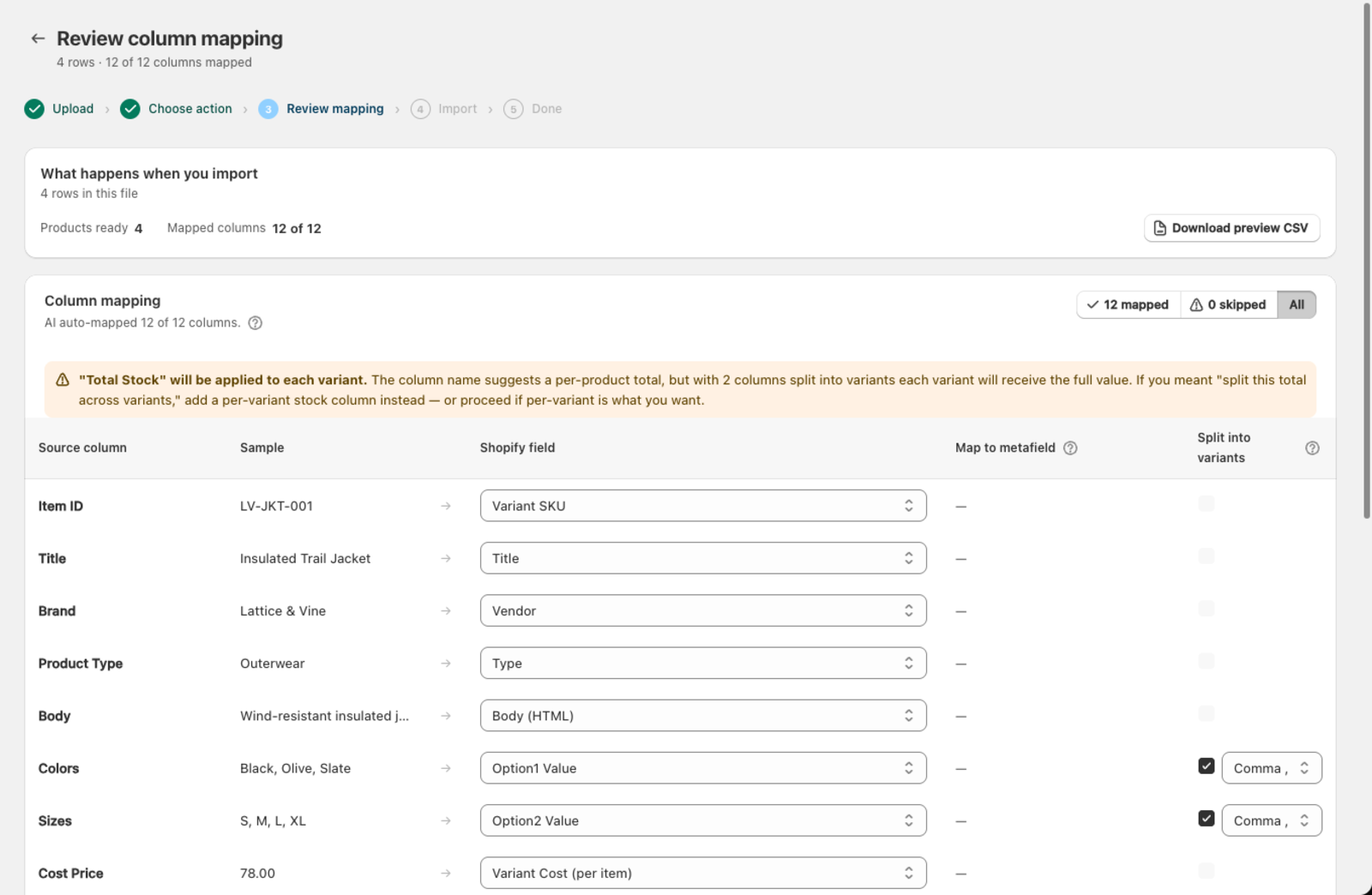
Csvio splits each cell and creates every combination as a separate variant — three colors × four sizes produces 12 variants on that one product, each with its own generated SKU (e.g. LV-JKT-001-Black-S).
Watch what happens to per-row values when you split
Splitting multiplies one row into several variants, so any other value on that row — price, cost, stock — gets applied to every resulting variant, not divided between them. If a column's name suggests a per-product total (like "Total Stock"), Csvio shows a warning on the mapping screen so you don't accidentally give every size and color the full stock count:
"Total Stock" will be applied to each variant. The column name suggests a per-product total, but with columns split into variants each variant will receive the full value. If you meant to split this total across variants, add a per-variant stock column instead — or proceed if per-variant is what you want.
If your stock figure really is per-product, add a separate per-variant quantity column, or adjust the numbers before importing.
Which fields are set per variant?
These fields are set per variant, not per product:
- Price and Compare at price
- SKU and Barcode
- Inventory quantity (requires a location — see Managing Shopify locations)
- Weight
- Option values (Size, Color, etc.)
If your file has a single price column, every variant of that product gets the same price. If each row has its own price, each variant gets its own.
What happens to variants missing from a re-imported file?
Re-importing through Bulk edit, or through a Resync, when a product already exists and your new file has a different set of variants:
- New variants in the file (e.g. a new size "XXL") are added to the existing product.
- Existing variants are updated with the file's values.
- Variants missing from the file are left as-is in Shopify — they are not removed. If a size is missing from the file, remove that variant manually in Shopify admin or use Bulk delete.
Running the same file through Create again does nothing to a product that already exists — Create skips matched SKUs rather than updating them. See Understanding import modes.
Common variant problems
Why are all rows creating separate products instead of variants?
The product titles don't match exactly. Check for trailing spaces, different capitalization, or slight spelling differences across rows.
What if my product has too many variants?
Shopify allows up to 2,048 variants per product and up to 3 options. If a product goes over the limit, Csvio reports an error for that product. Split it into separate products or remove option combinations you don't sell.
Why do variants appear without options?
Make sure you've mapped at least one Option Name / Value pair. Without option mapping, Csvio creates variants but they won't have selectable options in your store.
Why does every variant have the same stock number?
This is the packed-cell splitting behavior described above — a per-product total column gets applied in full to each variant it produces. Watch for the warning banner on the mapping screen when this could happen.
Still need help? Click the chat button in the bottom-right corner of Csvio, or email [email protected].