Update Shopify prices from a supplier price list
When a supplier sends you an updated price list, you can apply the new prices to your Shopify store without affecting any other product data. Use Bulk edit mode and map only the price columns.
How do I update prices from a supplier file?
-
Upload the price list. This can be a simple file with just two columns — an identifier (like SKU) and the new price.
-
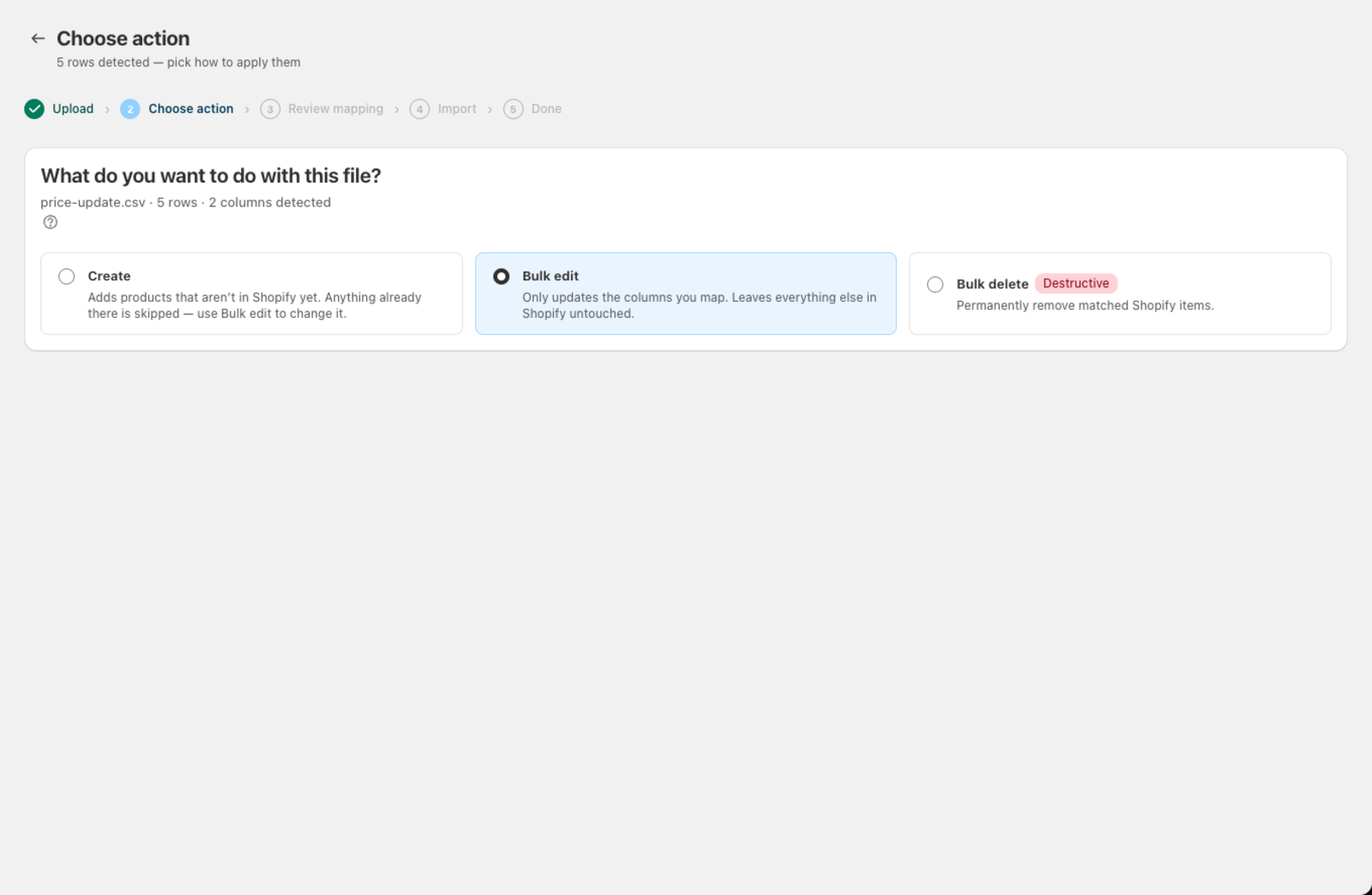
Select Bulk edit on the action screen.
-
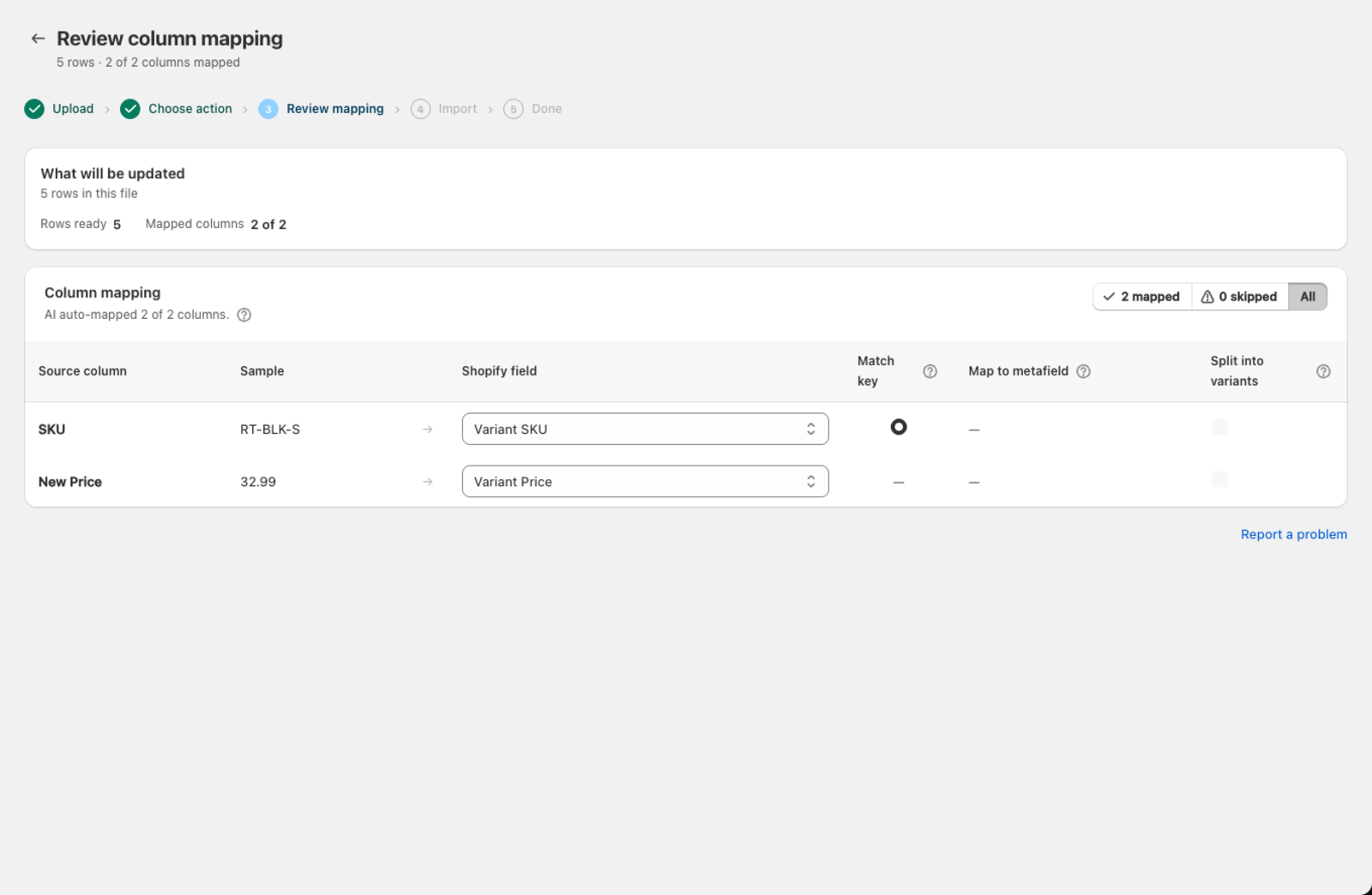
Choose your match key. On the Review mapping screen, set the identifier that links each row to a Shopify product — usually SKU or Barcode.
-
Map the price column to Variant Price in the mapping table. If the file also includes a compare-at price (the "was" price for showing a discount), map that to Compare At Price.
-
Leave everything else unmapped. Any column you don't map is left untouched in Shopify.
-
Click Apply bulk update to apply the price changes. A confirmation dialog shows exactly what will happen before anything changes.
How do I update cost per item?
If your file includes a wholesale or cost column, map it to Variant Cost (per item). This updates the cost field on each variant, which Shopify uses to calculate profit margins in reports. It's not visible to customers.
Tips for price updates
- Check for currency mismatches. Csvio imports the number as-is. If your file has prices in USD but your store uses EUR, convert them in your spreadsheet first.
- Remove currency symbols. Values like "$29.99" or "€15,00" should be plain numbers: "29.99" or "15.00". Csvio strips common symbols automatically, but unusual formats may cause errors.
- Double-check your match key and price column before clicking Apply. Bulk edit applies changes immediately — there's no separate preview step for this mode, so confirm the mapping is right first.
Can I update prices automatically?
If your supplier publishes a price list at a URL (or makes it available via FTP/SFTP), you can set up a scheduled import to pull and apply price changes automatically on a recurring basis.
Still need help? Click the chat button in the bottom-right corner of Csvio, or email [email protected].