Fix CSV and Excel errors before a Shopify import
If your import results don't look right, the issue may be in how the file is formatted. Here are the most common formatting problems and how to fix them.
How do I fix garbled or strange characters in my CSV import?
Characters like "é" instead of "é", or "â€"" instead of "—" indicate an encoding mismatch.
Fix: Open the file in your spreadsheet application and re-save it as CSV UTF-8 (sometimes labelled "CSV UTF-8, comma-delimited"). Most modern spreadsheet apps support this option in the "Save As" dialog.
Why are rows missing at the end of my imported file?
Csvio reads through blank rows — they're skipped, not treated as the end of the file. When rows go missing, the usual causes are:
- A malformed quoted field mid-file — an unclosed double quote makes the CSV reader lose track of where rows end. This is the most common cause of a truncated import.
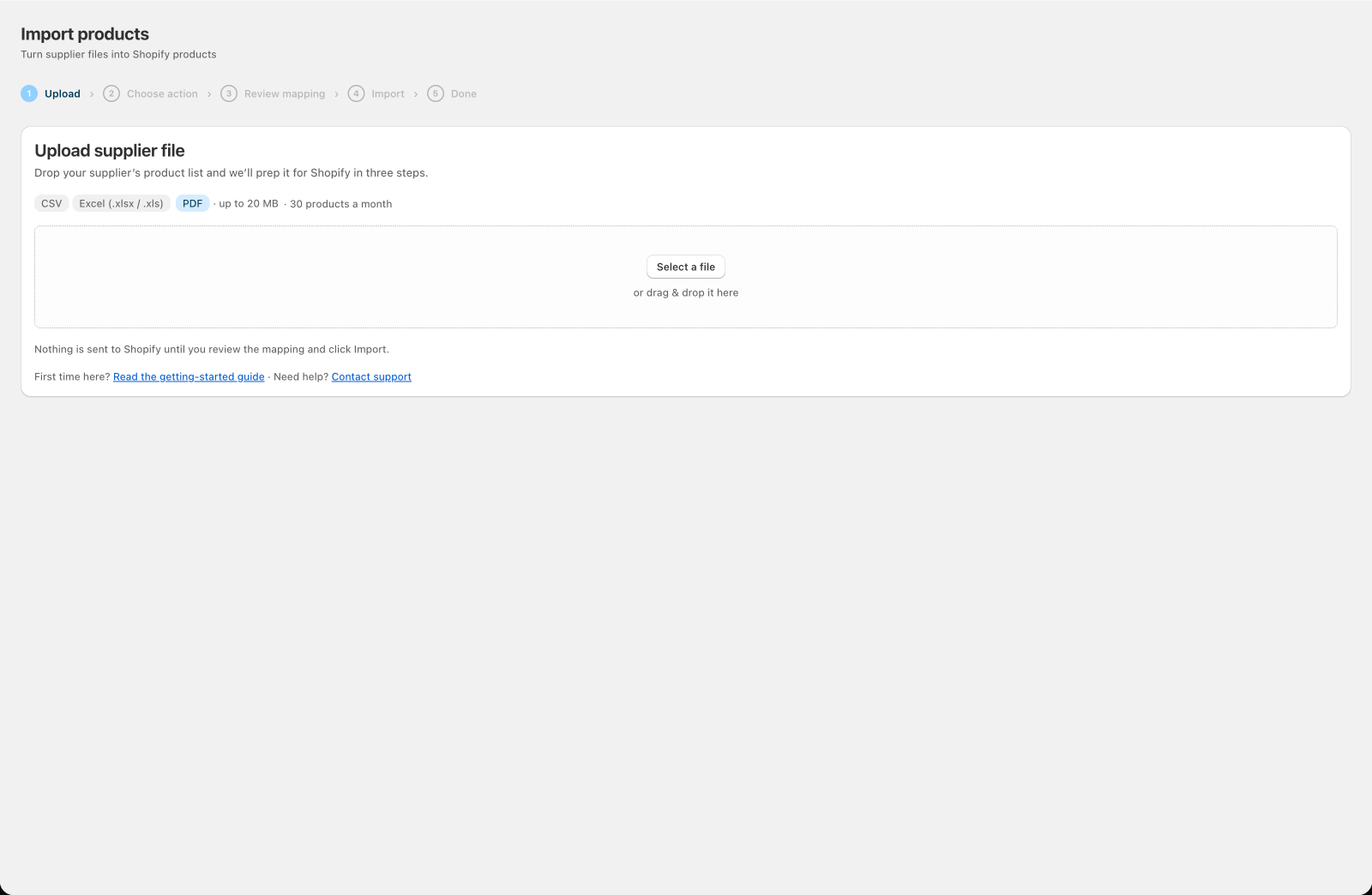
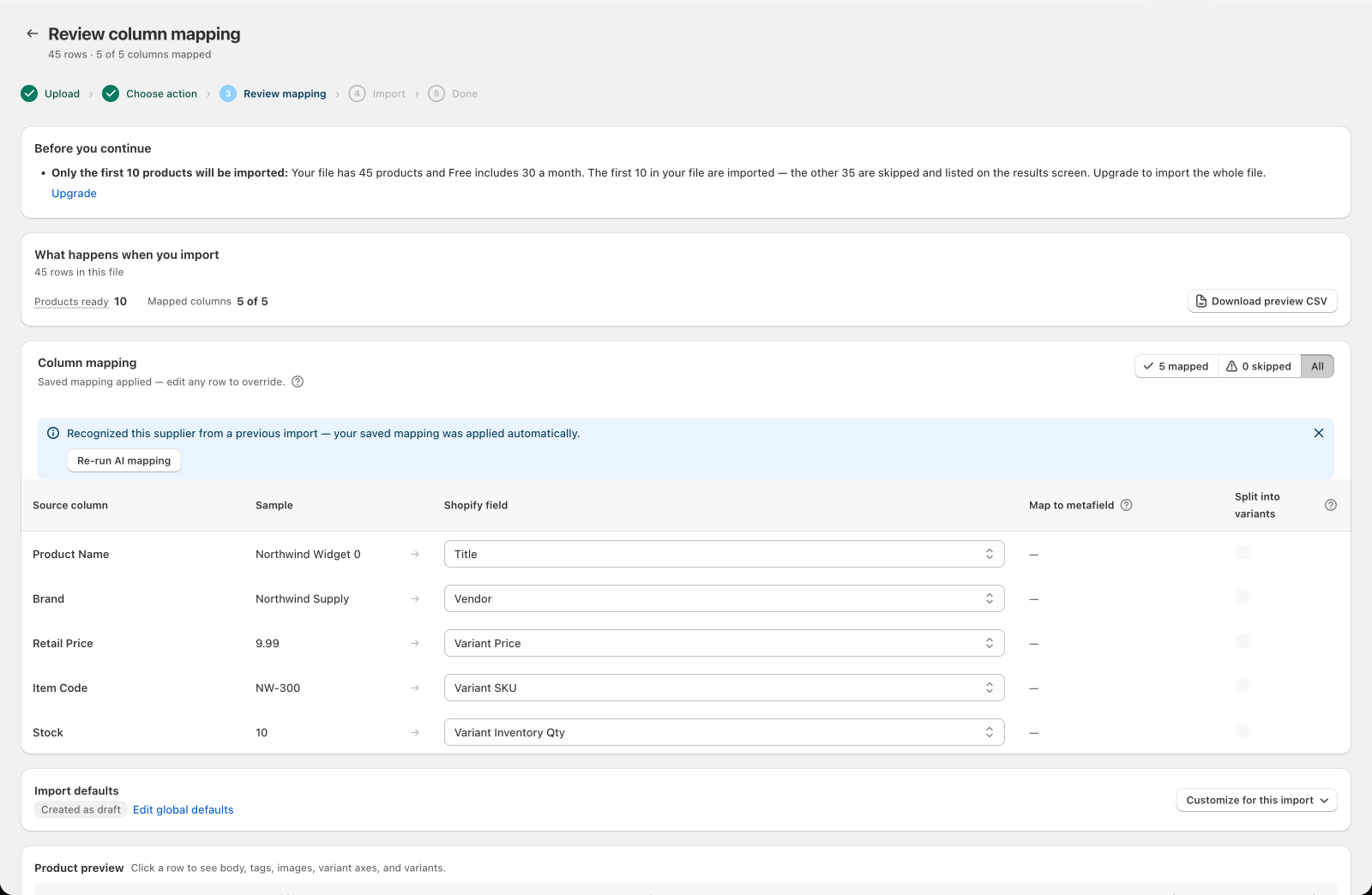
- You're on the Free plan and the file has more products than your month allows, so only the first ones are imported. The rest are listed on the results screen.
Fix: Open the file in a text editor and check that any value containing commas or line breaks is wrapped in properly-closed double quotes. If it was the Free plan's monthly products, import the rest once they reset on the 1st, or upgrade to import them now.
How do I fix merged cells causing import problems?
Merged cells cause data to shift to unexpected columns. Csvio reads each cell independently — a merge spanning rows 2-5 only puts the value in row 2; rows 3-5 appear blank.
Fix: Select all cells, then Home > Merge & Center > Unmerge Cells in Excel. Fill the unmerged cells with the correct values.
What if my column headers are not in row 1?
Some supplier files have a company name, logo, or blank rows above the actual data. Csvio reads row 1 as the header row.
Fix: Delete the rows above your column headers so the headers are in row 1. Alternatively, re-save the file starting from the header row.
How do I import from the correct sheet in a multi-sheet Excel file?
If your Excel workbook has multiple sheets, Csvio reads the first sheet by default.
Fix: On the action screen after uploading, you can switch to a different sheet if multiple sheets are detected. Alternatively, move your data to the first sheet or save just that sheet as a separate file.
Why do line breaks in a description split my rows?
CSV files can contain quoted fields with line breaks inside them (e.g. a product description that spans multiple lines). Csvio handles these correctly as long as the file follows standard CSV quoting rules — the field must be wrapped in double quotes.
If line breaks cause rows to split incorrectly, open the file in a text editor and check that multi-line values are properly quoted.
What if my file has more products than my plan allows?
It depends on your plan. The review screen tells you before anything is imported.
- Free — Csvio imports the first products in your file, as many as your 30 a month still allow, and lists the rest on the results screen. Your products reset on the 1st, or upgrade to import the whole file now.
- Starter, Pro and Scale — a file with more products than your plan imports at once (5,000, 50,000 or 100,000), or more than Starter has left this month, isn't imported. The review screen says so and the Import button stays off. Split the file into smaller files and import each one, or upgrade to import it in one go.
Every product in the file counts, including ones already in your store.
When you import the rest of a file, products already in your store are skipped, so nothing is created twice as long as your products have SKUs. Products without SKUs are always treated as new and may be duplicated.
Still need help? Click the chat button in the bottom-right corner of Csvio, or email [email protected].