Import product images from a supplier file
Csvio can import product images directly from URLs in your file. Images are downloaded by Shopify from the URLs you provide, so the links must be publicly accessible.
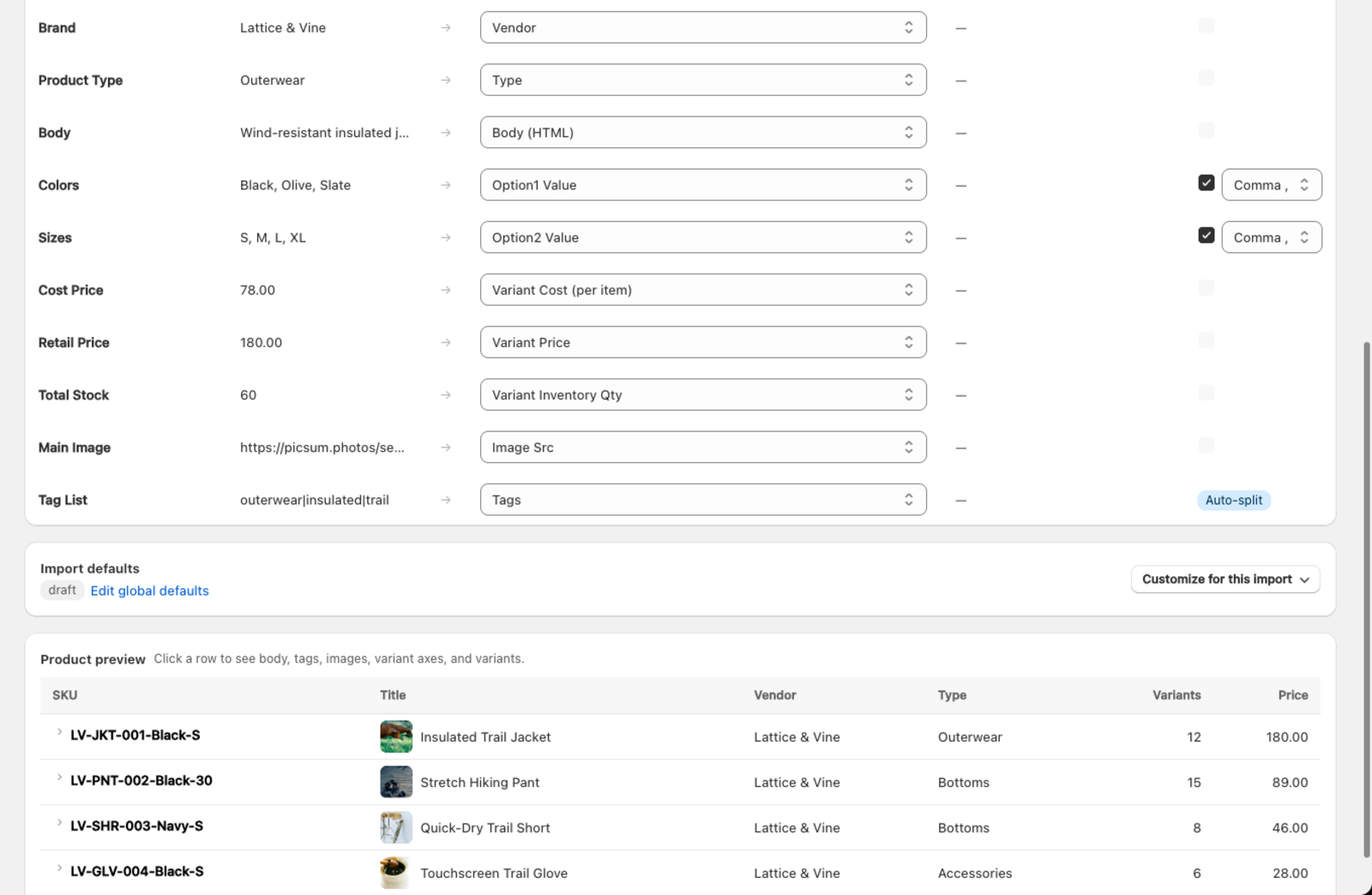
How do I import product images from a URL column?
If your file has one image column (e.g. "Image URL" or "Photo"), map it to Image Src in the mapping table. Csvio passes the URL to Shopify, which downloads and attaches the image to the product.
How do I import several images per product?
Many supplier files have numbered image columns like "Image 1", "Image 2", "Image 3". Map each one to Image Src — Csvio recognizes multiple image columns and imports them in order.
How do I add image alt text?
If your file includes a column with image descriptions, map it to Image Alt Text. Alt text improves accessibility and helps with SEO. If you have multiple image columns with corresponding alt text columns, map each alt text column alongside its image column.
How do I assign an image to a variant?
To assign an image to a specific variant (e.g. show a red image for the "Red" variant), make sure the image URL appears on the same row as the variant it belongs to. Csvio links the image to that variant automatically.
What happens to images in a Bulk edit?
Image columns work in Bulk edit too, with one difference: a Bulk edit replaces the product's photos with the ones on its row, rather than adding to them. Leave the image column unmapped and the photos stay as they are.
If Shopify can't download one of the links on a row, that row is reported as failed and the product keeps the photos it already had. Csvio adds the new photos before removing the old ones, so a failed download never leaves a product with no photos.
The same applies when your file names photos instead of linking to them. If one of a row's photos isn't in the files you uploaded, Csvio holds back that row's photos and leaves the product's photos as they are. Every other mapped column on the row is still updated. See Bulk edit existing products.
What do image URLs need to work?
- URLs must start with
https://orhttp:// - The file at the URL must be a supported image format (JPEG, PNG, GIF, WebP)
- The URL must be publicly accessible — Shopify downloads the image directly, so links behind a login or firewall won't work
- Temporary or expiring URLs may fail if they expire before Shopify downloads the image
Why won't my product images import?
Images don't appear on the product Check that the URLs are publicly accessible by opening one in a private browser window. If the URL requires authentication or has expired, replace it with a permanent public link.
Wrong image on wrong product Verify that the image URL appears on the correct row in your file. Each image is attached to the product on the same row.
"Image download failed" error Shopify couldn't download the file from the URL. The link may be broken, the server may be blocking automated downloads, or the file format may not be supported. Try opening the URL in your browser to confirm it loads.
What's next?
- Upload product photos from your computer — for suppliers that list photos by file name instead of a URL
- Bulk edit existing products — replace photos on products you already have
Still need help? Click the chat button in the bottom-right corner of Csvio, or email [email protected].