Add product photos from your computer to Shopify
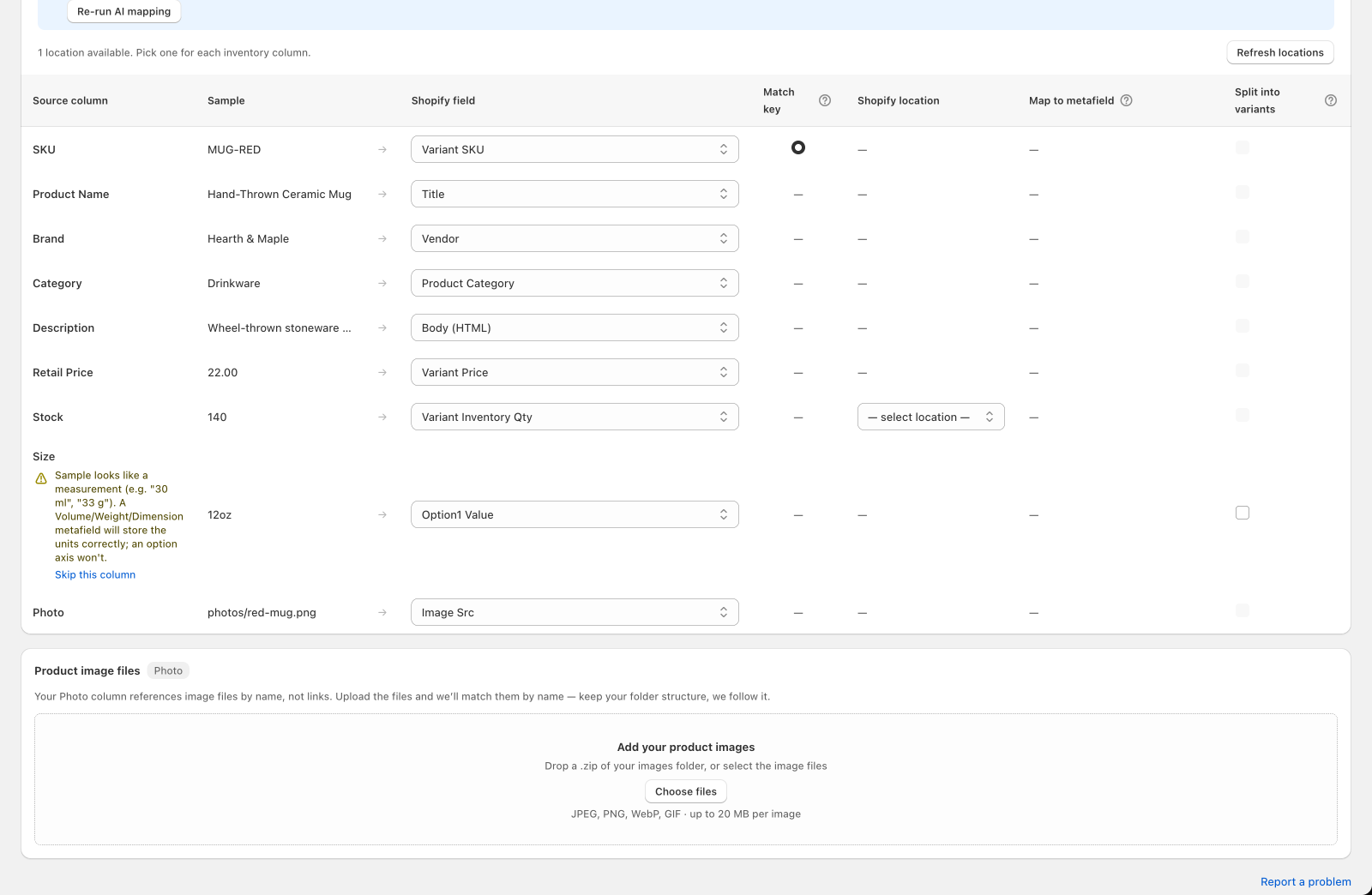
Some supplier files list photos by file name — red-mug.jpg — instead of a web link. Csvio can't download a file name, so when it spots this it shows a Product image files card where you upload the actual image files. Csvio then matches each name in your spreadsheet to an uploaded file.
When does the Product image files card appear?
This happens on a Create import and on a Bulk edit. While reviewing your column mapping, if a column mapped to Image Src (or Variant Image) contains values that look like file names or paths rather than https:// links, Csvio shows the Product image files card below the mapping table. If your file already uses image URLs, you won't see this — see Import product images from a supplier file instead.
How do I upload my photos?
You have two options:
- Zip your images folder and drop it on the card. This is the safest option — it preserves your folder structure, which matters if the same file name is used in more than one folder (e.g.
photos/red-mug.jpgandarchive/red-mug.jpgare different photos). - Select individual image files. Fine if every file name in your spreadsheet is unique.
Csvio accepts JPEG, PNG, WebP, and GIF files, up to 20 MB each. Uploads run in the background — you can keep working on the mapping while they finish.
How does Csvio match photos to products?
Once your files finish uploading, Csvio compares every file name referenced in your spreadsheet against what you uploaded and shows a summary like "3 of 4 images matched."
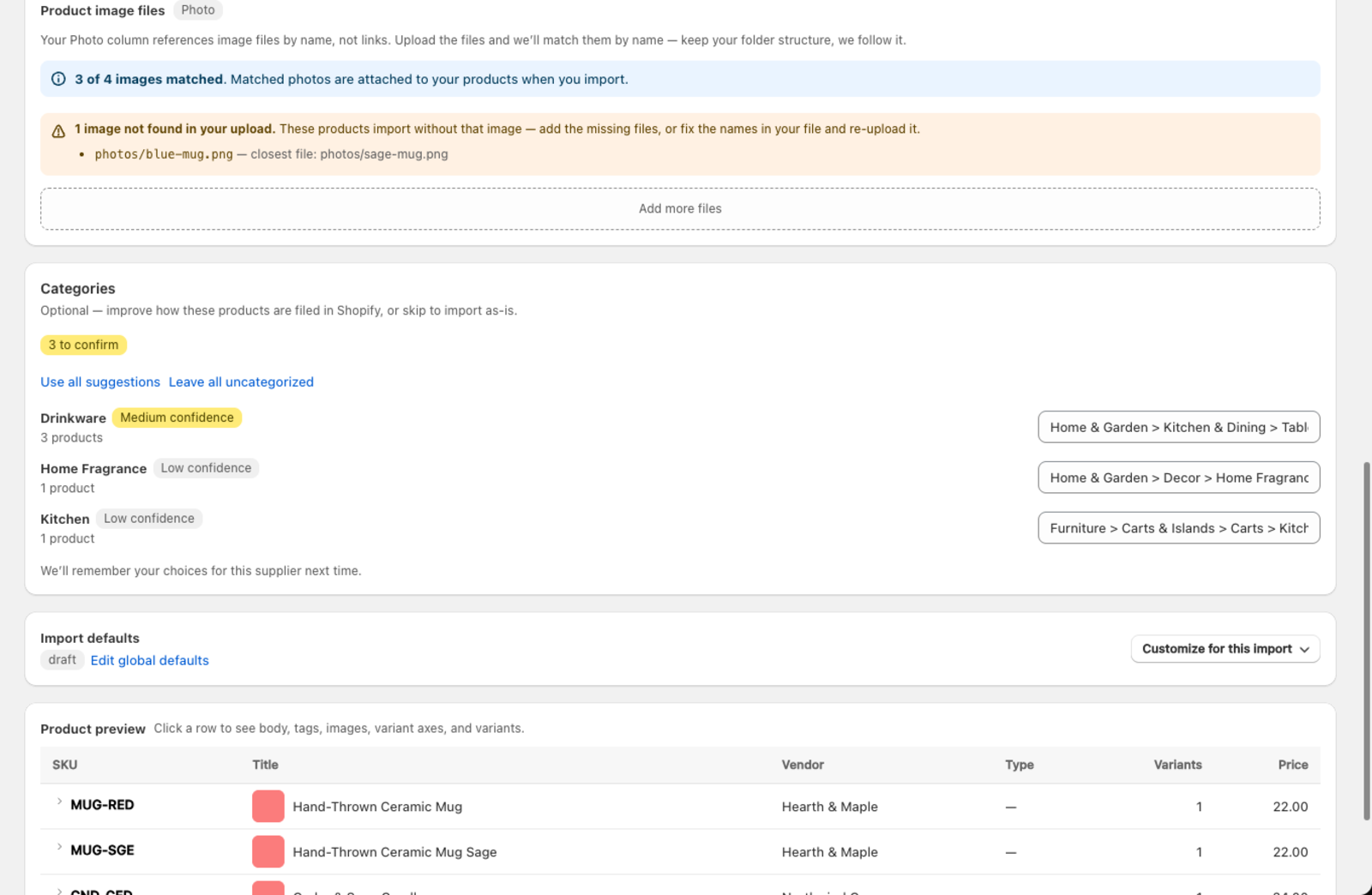
What happens to the matched photos depends on the mode you're running:
| Mode | What happens to matched photos |
|---|---|
| Create | They're attached to the new products as they're created |
| Bulk edit | They replace the photos on the products they match |
If you've imported from this supplier before, any photos already stored from that earlier import are reused automatically and don't need re-uploading — the summary notes how many were reused.
How do I fix photos that didn't match?
Csvio splits misses into two kinds, because they need different fixes:
| Problem | What it means | How to fix it |
|---|---|---|
| Not found | No uploaded file matches that name | Add the missing file to your upload, or fix the name in your spreadsheet and re-upload it |
| Matches more than one folder | The name exists in two or more folders you uploaded, and Csvio can't tell which one your spreadsheet means | Include the folder in your spreadsheet's value (e.g. photos/red-mug.jpg instead of red-mug.jpg) |
When a name doesn't match anything, Csvio also looks for the closest file name you did upload and suggests it right in the "not found" banner — useful for spotting a typo like blue-mug.png vs. an uploaded sage-mug.png at a glance, even though it isn't applied automatically.
A row with an unmatched image still imports:
- Create — the product is created without that photo. Add it in Shopify later.
- Bulk edit — the product keeps the photos it has now. Every other mapped column on that row is still updated.
What happens to photos in a Bulk edit?
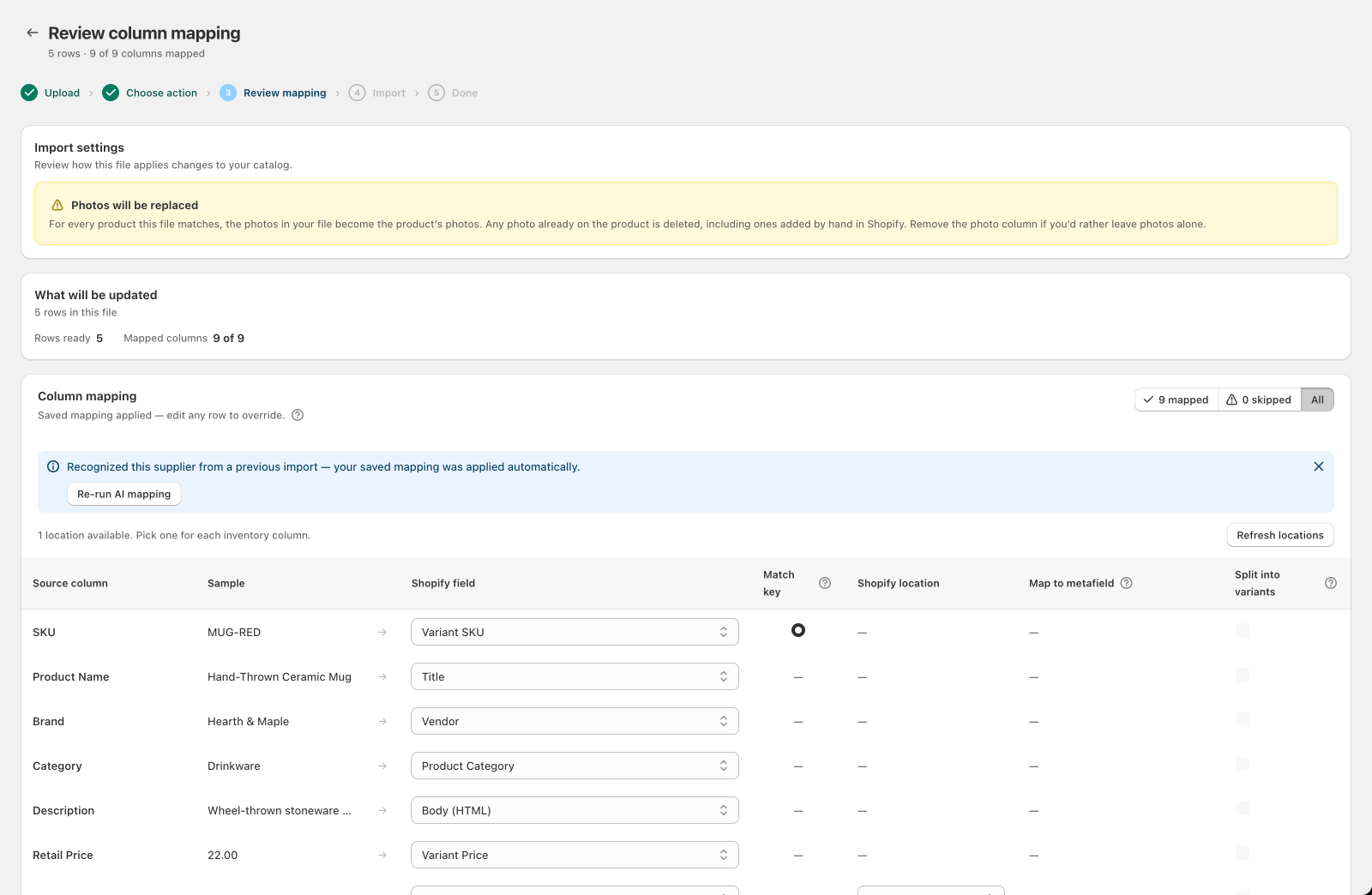
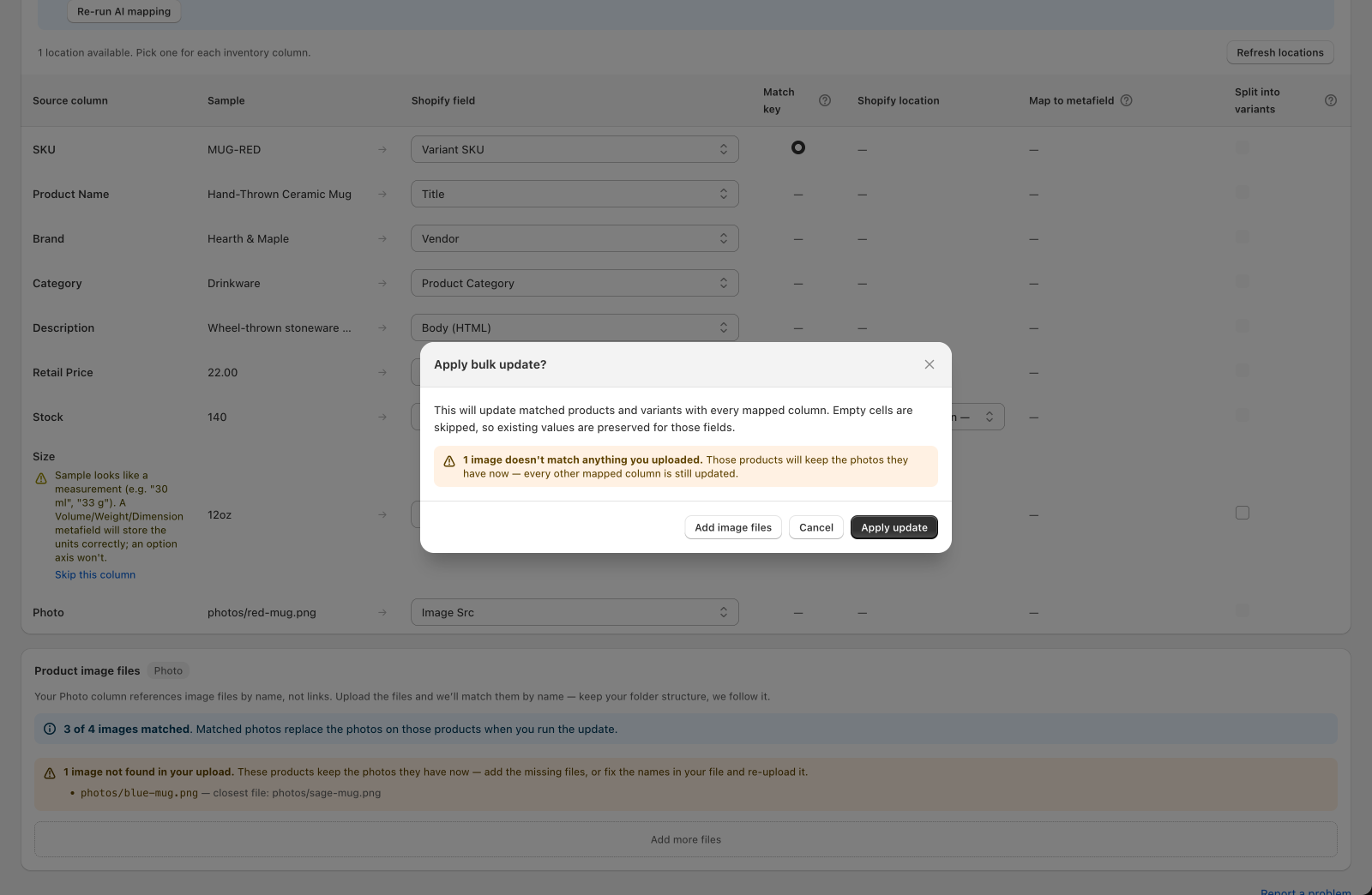
A Bulk edit replaces a product's photos with the ones on its row. Anything already on the product is removed, including photos added by hand in Shopify. The mapping screen shows this before you apply:
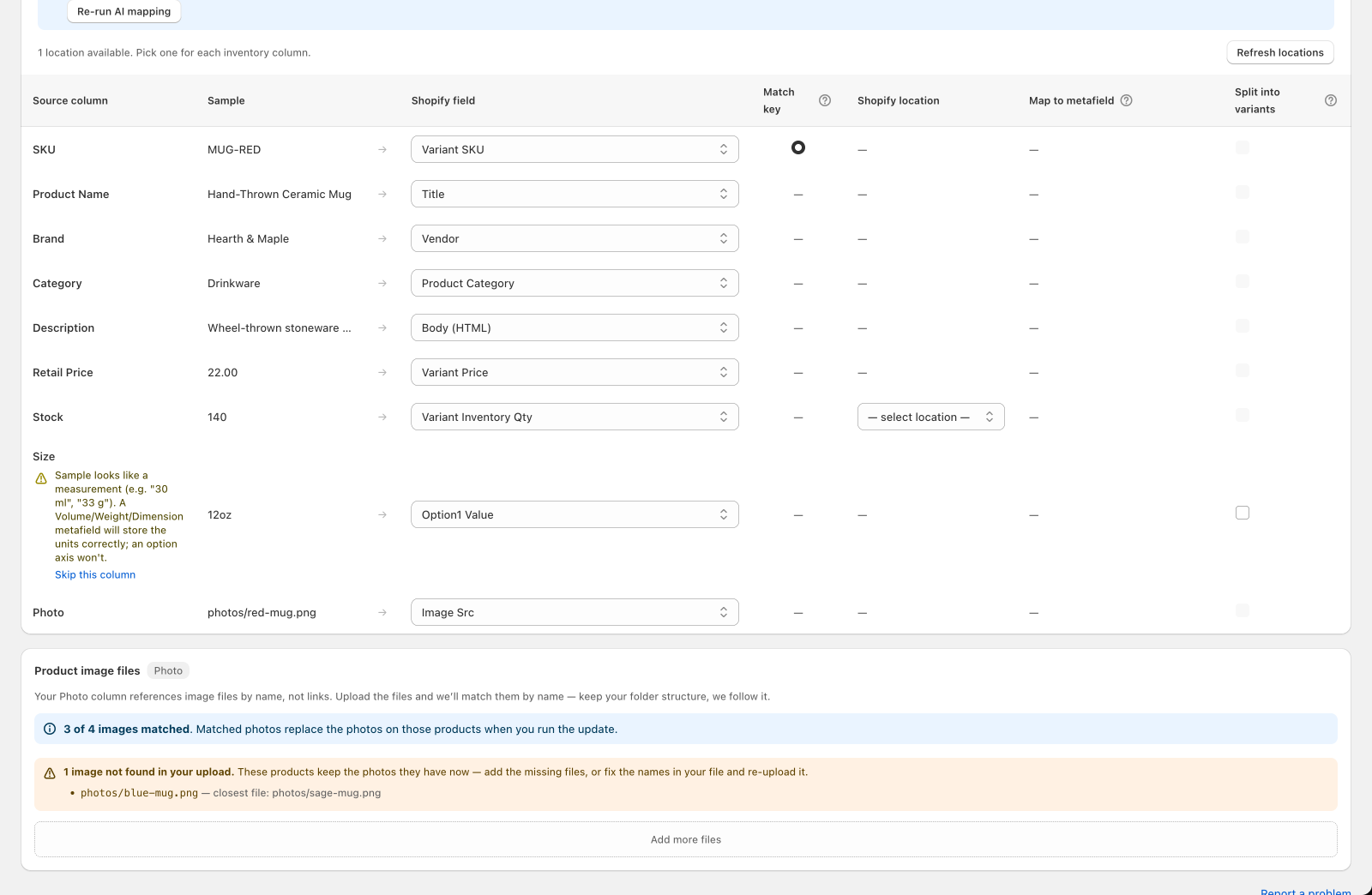
If a photo on a row isn't in your upload, Csvio holds back all of that row's photos and leaves that product's photos as they are. It doesn't apply a partial set, which would remove photos your file never asked to replace.
The rest of the row still goes through — price, stock, tags, and every other mapped column are updated, and the row counts as a success.
The confirmation dialog shows the count before you apply, with an Add image files button:
The Done screen shows it again once the update finishes:
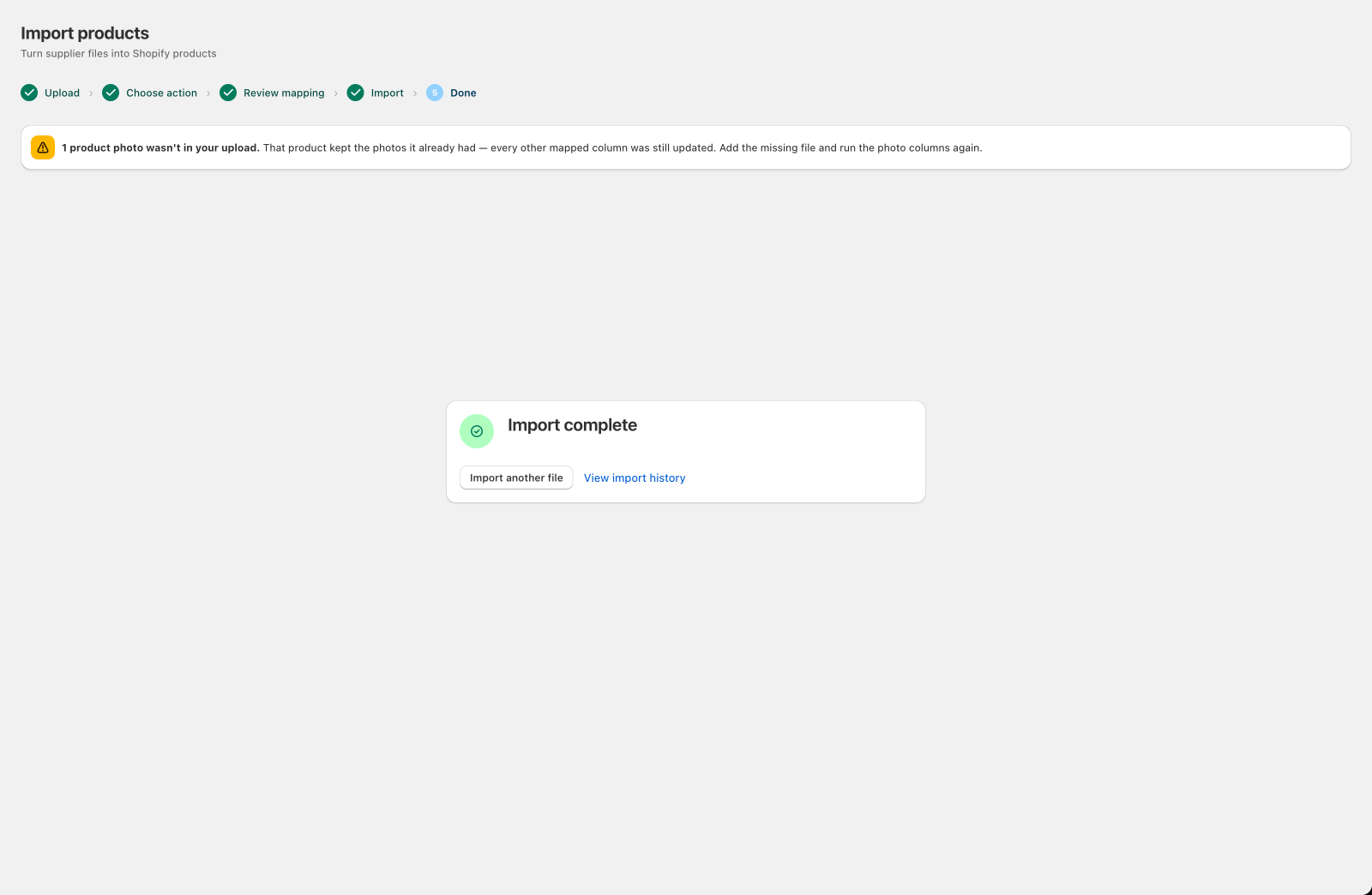
To fix it, add the missing files to your upload and run the update again.
What if two photos have the same file name?
If you select loose files (not a zip) and two of them share the same name, Csvio can't tell them apart and leaves both out, since there's no folder to distinguish them. If you see a "file names are used by more than one photo" warning, either zip your images folder instead of selecting loose files, or rename the photos so each one is unique.
What's next?
- Import product images from a supplier file — for suppliers that already provide image URLs
- Bulk edit existing products — the full Bulk edit walkthrough
- Preview an import before pushing to Shopify — check the rest of your mapping before importing
Still need help? Click the chat button in the bottom-right corner of Csvio, or email [email protected].