Schedule automatic supplier imports
Scheduled imports let you pull a file from a URL or file server on a recurring basis and apply changes to Shopify automatically. Each run compares the new file against your last import and applies only what changed.

Scheduled imports are available on the Pro and Scale plans. Pro holds up to 10 schedules at once and Scale up to 50 — one per supplier feed. If you're at that number, delete a schedule you no longer use to make room, or move up a plan.
How do scheduled imports work?
- You provide a source (a URL, FTP, or SFTP path) where your file is published.
- You set how often it runs — on an interval (as often as every few minutes, up to every 24 hours), daily, or weekly.
- At each scheduled time, Csvio downloads the file, compares it to the last import, and applies any new or changed products to Shopify. Products missing from the new file are reported in the run summary by default. If you turn on Archive products that are no longer in the file, those products are archived instead (not permanently deleted) — you can restore them from Shopify admin if needed.
How do I create a schedule?
- Go to the Schedules page and click Add schedule.
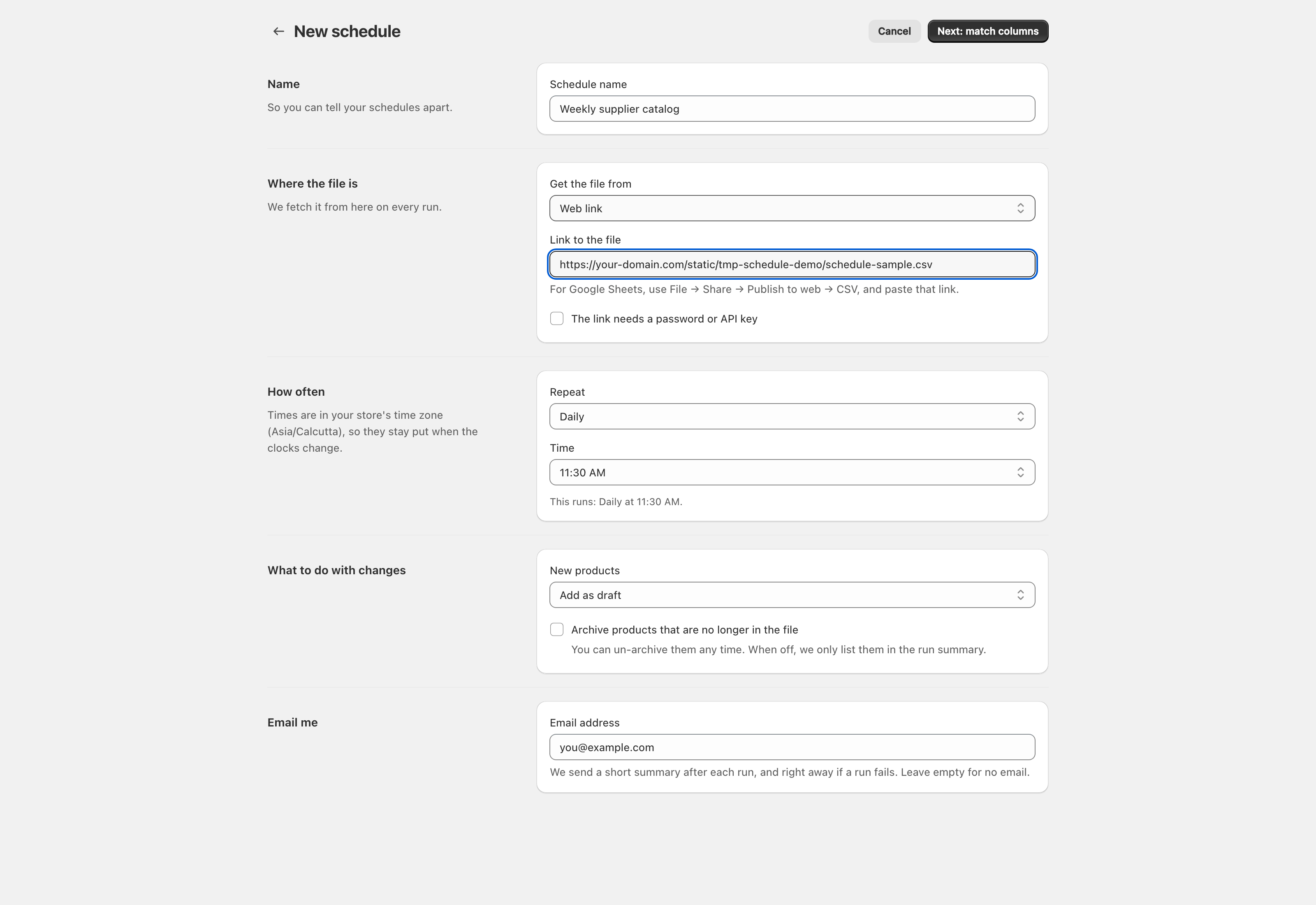
- Fill in the details:
Name
A label like "Weekly supplier price list" so you can tell your schedules apart.
Where the file is
Pick where Csvio fetches from under Get the file from.
| Source | What to provide | Best for |
|---|---|---|
| Web link | Direct download link to the file, in Link to the file | Supplier portals, Google Sheets, any public or authenticated URL |
| FTP server | Host, port, username, password, file path | Legacy file servers |
| SFTP server | Host, port, username, password, file path, server fingerprint | Secure file servers (the fingerprint comes with your SFTP credentials) |
For web links that need a sign-in, check The link needs a password or API key and choose username/password or API key/Bearer token.
For Google Sheets, use the published CSV export URL (File > Share > Publish to web > CSV), not the regular share link — the form shows a reminder of this right under the link field.
How often
| Option | What you choose |
|---|---|
| Every few minutes or hours | Every 5, 10, 15, or 30 minutes, or every 1 to 24 hours |
| Daily | A time of day (e.g. every day at 3:00 AM) |
| Weekly | A day of the week and a time (e.g. every Monday at 3:00 AM) |
Times are in your store's time zone, so they stay put when the clocks change. The shortest interval is every 5 minutes.
What to do with changes
Under New products, choose whether new products are added as Draft or published immediately as Active.
Archive products that are no longer in the file is off by default. When off, products that disappear from the file are only reported in the run summary — they're left untouched in Shopify. When on, those products are archived (reversible — you can restore them from Shopify admin).
Email me
Enter an email address to receive a summary when each run completes or fails. Leave it empty for no email.
- Click Next: match columns. Csvio downloads the file and takes you into the standard import flow.
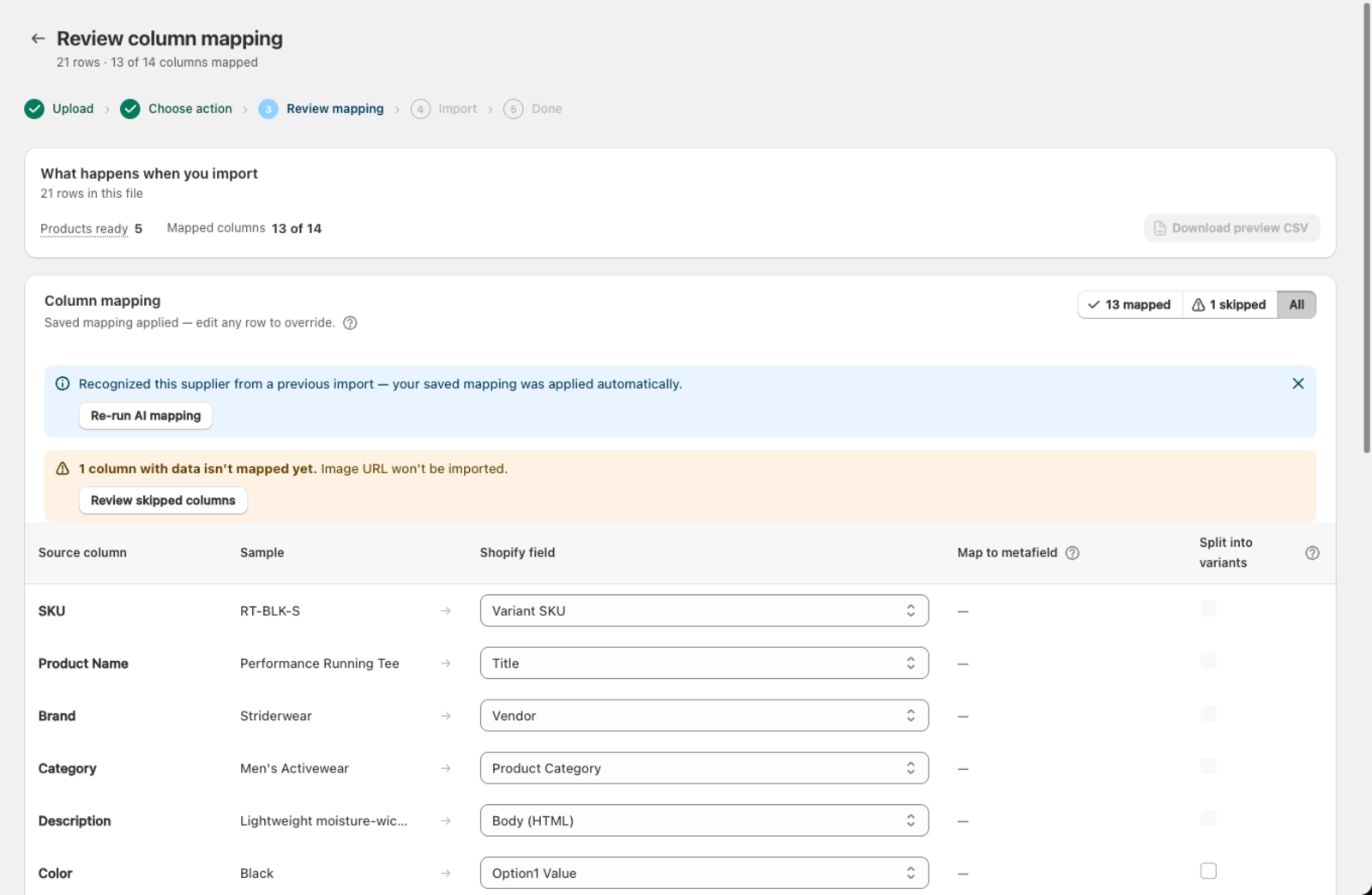
- Review the column mapping and run the first import, just like a manual import. Once that first import finishes, the schedule is activated automatically and future runs happen on the frequency you set.
How do I manage my schedules?
The Schedules page lists every schedule in a row, with the source under its name (Web link, FTP, or SFTP, and where it fetches from). Each row shows:
- Status — On or Paused
- How often — the cadence you set, in your store's time zone
- Last run — when it ran and what changed, e.g. "12 new · 248 updated · 3 removed"
- Next run — when it runs next
Available actions
Run now sits on the row and triggers an immediate run outside the schedule. The … button next to it holds the rest:
- Past runs — the run history for that schedule
- Edit — change the source, frequency, or other settings
- Pause — stop it running until you switch it back on
- Delete — remove the schedule permanently (does not affect products already in Shopify)
How do I see past scheduled runs?
Open the … menu on a schedule and choose Past runs. Each entry shows:
- When it ran
- Whether it succeeded, partially succeeded, or failed
- How many products were added, changed, or removed
- Error details (if it failed)
Scheduled runs also appear on the History page as Scheduled sync, with the schedule's name next to them. A run that found nothing new shows as No changes · already up to date. If a scheduled run fails, a banner at the top of History tells you which schedule and why.
Frequently asked questions
What happens if your file hasn't changed?
Csvio detects that nothing changed and skips the run. No products are modified.
What happens if the source URL or FTP server is down?
The run fails and you receive an error notification (if email is configured). The schedule tries again at the next scheduled time.
Can I have multiple schedules for different suppliers?
Yes. Each schedule has its own source, frequency, and mapping. Create one per supplier feed.
Do scheduled runs count toward my import limit?
Scheduled imports are on the Pro and Scale plans, and neither has a monthly cap on imports or products — so scheduled runs won't use up a quota.
Still need help? Click the chat button in the bottom-right corner of Csvio, or email [email protected].