Save and reuse supplier column mappings
After a successful import, Csvio saves the supplier so future uploads with the same column layout are recognized automatically. The Suppliers page lists all saved suppliers.
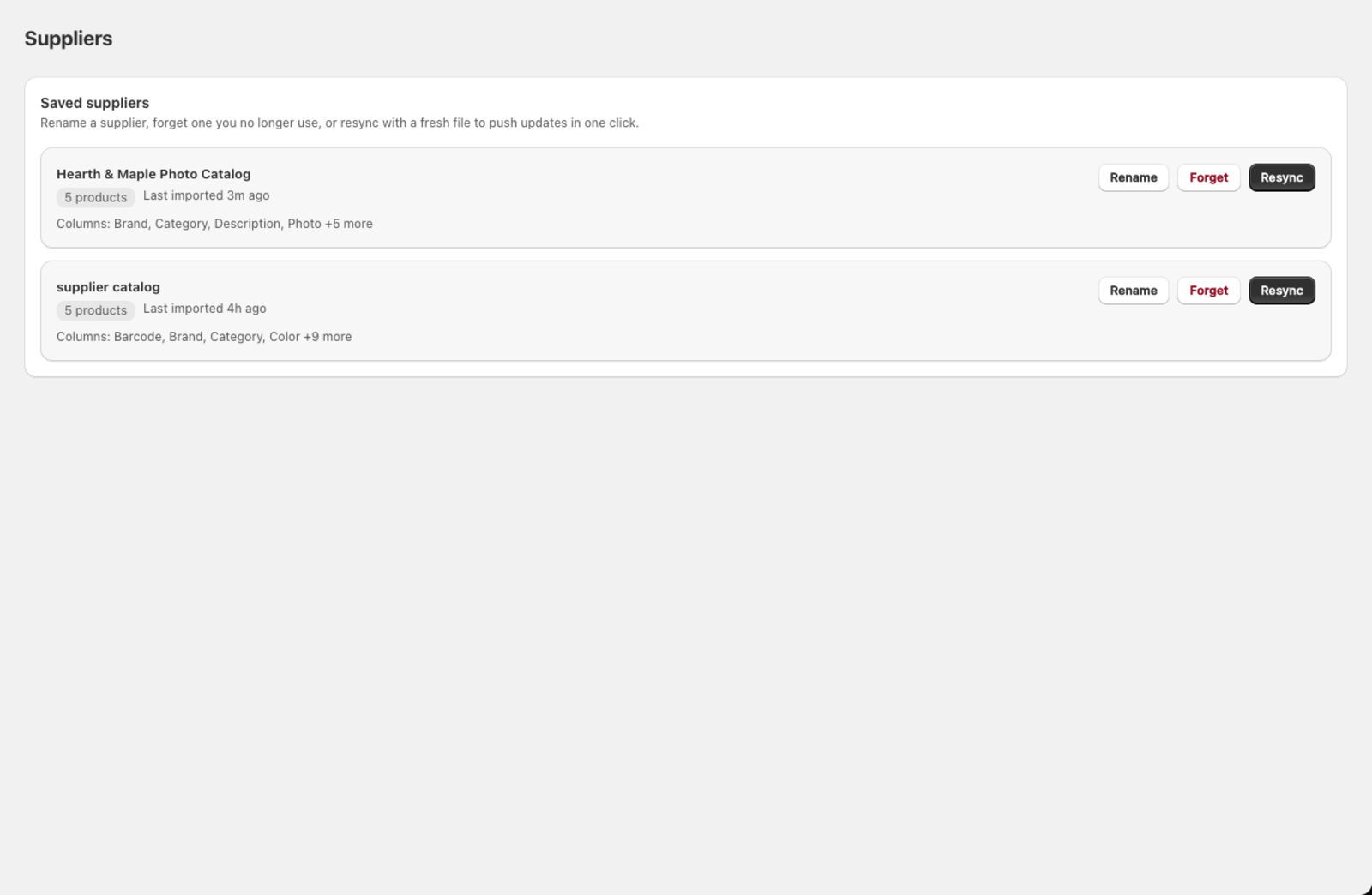
What does each supplier card show?
- Supplier name — the name you gave it (or "Unnamed supplier" if you haven't named it yet)
- Product count — how many products were imported last time
- Last imported — when the most recent import from this supplier was run
- Columns — a preview of the column headers from the file
How do I name a supplier?
Giving a supplier a name (e.g. "Acme Wholesale" or "Summer 2026 Catalogue") makes it easier to find later.
- Click Name it (or Rename if it already has a name) on the supplier card.
- Enter a name (up to 120 characters).
- Click Save.
You can also name a supplier right after completing an import, when the app prompts you.
How do I forget a supplier?
If you no longer work with a supplier, click Forget supplier to remove its saved mapping and snapshot.
- Future uploads with the same column layout will be treated as a fresh import (the AI will re-map columns from scratch).
- Products already in Shopify are not affected — forgetting a supplier doesn't delete any products.
How do I resync a saved supplier?
Click Resync on a supplier card to upload an updated file and see exactly what changed since the last import. Csvio compares the new file against the saved snapshot and shows added, changed, and removed products before applying anything.
Resync is available on the Pro and Scale plans. See Resync an updated supplier file for the full walkthrough.
Why is my supplier not listed?
Only named suppliers with a Variant SKU mapping appear on this page. Two conditions must be met:
- The file has a column mapped to Variant SKU. Csvio uses SKUs to build the supplier snapshot that powers resync. If no column is mapped to Variant SKU (or the file uses a split/delimiter pattern), no snapshot is created and the supplier can't appear here.
- You named the supplier. After a successful import, Csvio prompts you to enter a supplier name. If you skipped that step, the snapshot exists but the supplier won't show up in this list.
To fix a missing supplier: re-import the file, make sure a column is mapped to Variant SKU, and enter a name when prompted after the import completes.
Bulk edit and Bulk delete imports don't create supplier entries.
Still need help? Click the chat button in the bottom-right corner of Csvio, or email [email protected].